Packaging in My Candy Business is the order-completion sequence: match the customer’s candy and weight, scoop it, choose a suitable box or bag, add the required sticker, close the package, and send it. The main decision is not simply which container looks right. You need enough candy for the requested weight and a package that fits the order before you can finish delivery.
What packaging does in My Candy Business
Packaging turns Stock into a deliverable order. Orders tell you which candy and quantity to prepare; the packaging station is where you measure that candy and turn it into a finished parcel. A completed parcel can then be sent to the customer, clearing the prepared order and contributing to the shop’s money and progression.
The game’s public description summarizes the same outcome as packing every box with goodies, taping it shut, adding the label, and posting it. In the playable packaging flow, the label is represented by the sticker choice, while closing the package is the checkpoint before delivery. Treat each part as a required handoff rather than skipping straight from the candy shelf to the send point.
Packaging records and their purpose
The records below describe the packaging elements shown in the current game information. They are practical role descriptions, not a complete unlock or capacity catalogue. Use the order screen and current packaging choices when the game presents a value that is not listed here.
| Packaging element | What it does | Player action | Important condition |
|---|---|---|---|
| Candy Scooping | Measures the selected candy into the order package | Use the scoop and keep adding candy until the requested weight is reached | The correct candy must be available in Stock |
| Package Box | Holds and protects a candy order | Choose a box that matches the order, place the candy inside, and close the lid | The package must be suitable for the order quantity |
| Package Bag | Holds candy or gift-style products in a bag | Select the bag option when the order supports it and load the contents | The available package depends on the order and current options |
| Box Size | Matches container capacity to the order | Compare the order weight with the offered small or large box | A size that is too large or a poor split can affect the packaging check |
| Stickers | Adds the shop label or other package decoration | Choose a Shop, Star, or Special sticker before closing | Some orders may require more than one sticker |
| Closing Package | Seals the box or bag so it can be delivered | Close the lid or seal the bag after the candy and stickers are ready | Do not send until the package is closed |
| Delivery | Hands the completed parcel to the customer | Move the sealed order to the send point and send it | Packaging must be complete before delivery |
These rows are best read as a sequence. Candy Scooping supplies the contents, Box Size or Package Bag determines the container, Stickers handle the label step, Closing Package creates the finished parcel, and Delivery completes the transaction. If an order is not progressing, check those handoffs in that order instead of changing unrelated shop upgrades.
How to match candy weight and package size
Start with the order’s requested candy and weight. The available examples include 150 g, 250 g, 500 g, 750 g, and 1 kg orders, while observed packaging scenes specifically show 250 g and 750G choices. These values describe order examples rather than a guaranteed complete list of every current order.
Use the scoop to add the requested candy gradually. A partial amount is not a completed order: one observed 250 g order showed approximately 183 g before more candy was added. That is a useful practical check because the container can look full while the measured quantity is still short. When the displayed amount is below the order target, continue scooping the same candy and recheck the weight rather than closing the package early.
Check the candy weight before choosing a package
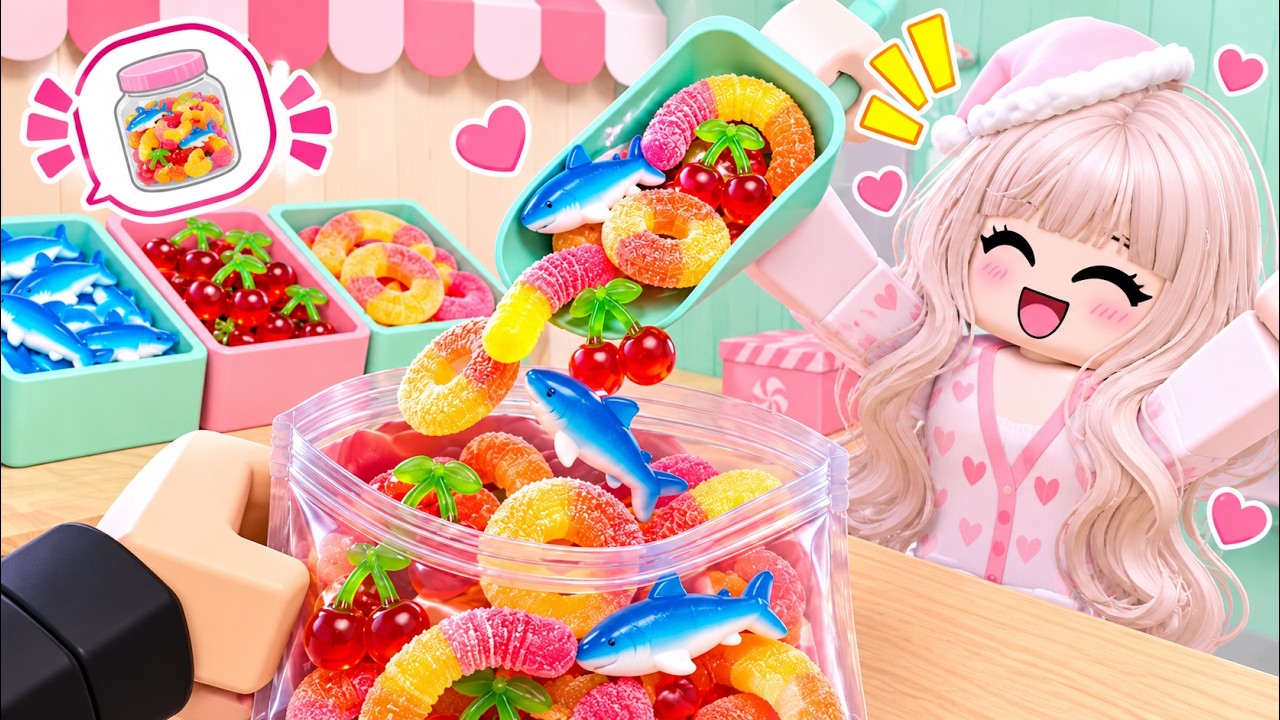
This moment supports the weight check described here: a 250 g order is measured at 183 g before the player chooses a box and adds stickers.
Once the weight is close to the target, select the container offered for that order. The documented examples show small and large boxes, as well as bags. A 750G box is shown in one packaging example, but the the documented examples do not establish a universal capacity table for every box, bag, or order. Therefore, use the current order interface as the authority when several sizes appear.
Avoid choosing a container only because it is the largest. The packaging decision is about fit and the order’s presentation, not a confirmed reward multiplier. If the game offers a smaller box that fits the measured candy, it is the more direct match; if the order or interface points to a larger box or bag, follow that current option. There is no reliable evidence here for exact capacity thresholds or a formula that changes the customer reward based on container size.
Stickers, closing, and delivery
After the candy is in the selected box or bag, handle the sticker step before sealing. The observed sticker names are Shop, Star, and Special. They establish the types visible in the packaging flow, but they do not establish a permanent unlock order or prove that every order requires the same sticker combination. If the order interface asks for a particular sticker or multiple stickers, complete that request before closing.
Closing is the transition from an open package to a shippable one. For a box, this means putting the contents inside and closing the lid; for a bag, it means sealing the bag. If the package will not advance, return to the open parcel and check three things: the weight, the sticker selection, and whether the candy is actually inside the chosen container.
Only after the package is closed should you move it to the delivery or send interaction. Delivery is the final packaging stage and clears the prepared order. The documented flow connects completed orders with money and level progress, and the game description mentions tips after posting orders. It does not provide a dependable reward formula for base payment, tips, or experience, so do not treat a particular box, sticker, or weight as a guaranteed bonus.
Packaging choices and common exceptions
A box and a bag are not interchangeable purely on appearance. The order type and the options shown at the packaging step determine what is available. Bags are documented for candy or gift-style products, while boxes are documented for regular candy orders and the observed 250 g scene. Gift packaging and special stickers appear in the documented information, but their exact reward rules and unlock requirements are not fully specified.
Stock is a prerequisite for the entire flow. If the requested candy is missing from the shelf, packaging cannot fix the shortage. Return to the candy restocking flow, wait for the delivery when required, unpack the shipment, and place the candy into Stock before retrying the order. The packaging step consumes the candy you use, so a successful earlier order can leave too little inventory for the next one.
Weight mismatch is the clearest measurable exception. If the order asks for 250 g and the package shows about 183 g, the order is still short even if candy is already visible in the container. Add more of the requested candy and verify again. Conversely, avoid assuming that a displayed number is a permanent game-wide requirement: order weights and available packaging can change with the current order, level, or game updates.
If the sticker list differs from the examples here, follow the current order panel. The confirmed sticker names are useful for recognizing the step, not for proving a fixed catalogue. The same rule applies to box sizes, bag availability, and any new special-order packaging.
A reliable packaging checklist
Use this compact order whenever you process a candy parcel:
- Read the order and note the candy type, target weight, and any package or sticker request.
- Confirm the requested candy is present in Stock before starting the scoop.
- Scoop the matching candy and compare the displayed amount with the target; keep adding it if the amount is short.
- Choose the box size or bag offered for that order, using fit rather than appearance alone.
- Put the candy into the container, then add the requested Shop, Star, Special, or other currently displayed sticker.
- Close the box or seal the bag and verify that the package is no longer open.
- Send the finished parcel and check that the prepared order clears before starting the next one.
This order separates the parts that are easy to confuse. Scooping answers “how much candy is ready,” the container choice answers “where it goes,” the sticker answers “how it is labelled,” closing answers “is it shippable,” and delivery answers “has the customer order been completed.”
Packaging is therefore a short quality-control loop rather than a single button press. Match the order, measure the contents, select a sensible container, label it, seal it, and send it. For exact container capacities, required sticker combinations, or reward calculations, rely on the live order and packaging panels because the current game information does not provide a complete static table.
First-time My Candy Business packaging questions
Why is a 250 g order not complete when the package shows about 183 g?
The package is still under the requested weight. Keep scooping the same candy and recheck the displayed amount before closing it.
Should I choose a box or a bag for every order?
No. Use the box, box size, or bag offered for that order. The documented examples show bags for some candy or gift-style products and boxes for other orders, but it does not establish one universal container for every order.
What should I check when a package will not send?
Check that the candy reaches the requested weight, the requested sticker step is complete, and the box or bag is closed. Delivery is the final step, so an open or incomplete package must be corrected first.
What happens if the requested candy is missing from Stock?
You cannot complete the packaging step until that candy is available. Restock the shelf through the shop’s ordering and delivery flow, unpack the shipment when it arrives, and then retry the order.